Agar aap apne phone ki lock screen ko thoda personal aur stylish banana chahte hain, to apni photo ko hi iPhone Lock Screen style mein convert karna ek interesting idea hai. Normal portrait ko dark background, warm lighting aur lock-screen elements ke saath combine karke ek aisi image ban sakti hai jo wallpaper jaisi feel de.
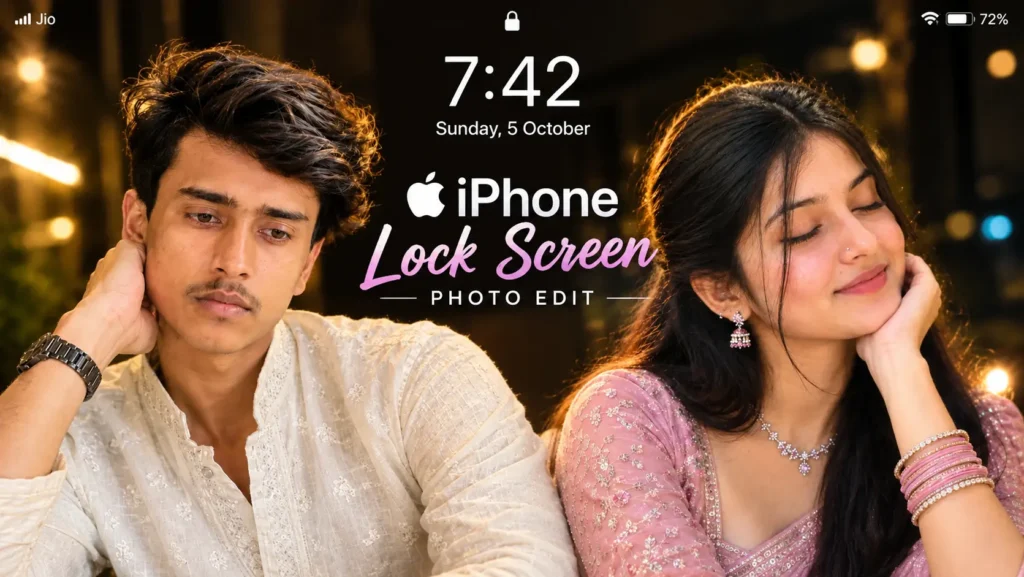
AI Photo Editing ki help se is type ka creative look banana kaafi simple ho sakta hai. Aapko bas apni ek clear photo upload karni hai aur AI ko batana hai ki final image kis tarah ki honi chahiye.
Is article mein hum iPhone Lock Screen style photo ko step by step samjhenge. Saath hi ek ready-to-use prompt bhi milega jise aap apni photo ke saath try kar sakte hain.
Look Kaisa Rahega?
Is style mein face aur upper body image ka main focus rehte hain. Person close-up frame mein hota hai, background dark aur softly blurred hota hai aur face par warm light ka effect diya jata hai.
Traditional outfit, slightly messy hair aur relaxed pose photo ko simple portrait se thoda different look dete hain.
Sabse interesting part upar ka lock-screen style layout hai, jisme time, date aur small status icons jaise elements add kiye ja sakte hain.
Photo Choose Kare
Sabse pehle ek clear photo select kare.
Koshish karein ki face properly visible ho aur source image bahut blurry na ho. Agar hair aur upper body bhi visible ho to overall transformation ko reference karna comparatively easier ho sakta hai.
Aapko pehle se lock screen ya wallpaper wali photo ki zarurat nahi hai. Ek normal portrait bhi kaam kar sakta hai.
Photo Upload Kare
Ab selected image ko supported AI image editing tool mein upload karein.
Uploaded photo ko main identity reference ke roop mein use kiya jayega. Isliye prompt mein face, skin tone, hairstyle aur body proportions ko natural aur recognizable rakhne ki instruction di gayi hai.
Pose Set Kare
Is style ke liye pose ko simple aur natural rakha gaya hai.
Person ek side ka face hand par gently rest karta hai aur expression calm aur thoughtful hota hai. Aisa pose image ko overly posed fashion shot banne se rok sakta hai.
Aap baad mein direct camera look, standing pose ya side-profile bhi try kar sakte hain.
Outfit Choose Kare
Reference look ke liye light-colored kurta use kiya gaya hai, jisme subtle embroidery hai.
Dark background ke saath light outfit clean contrast create kar sakta hai. Lekin ye fixed nahi hai. Aap white shirt, black shirt, blazer, hoodie ya kisi aur outfit ke saath bhi same concept try kar sakte hai
Lighting Ka Mood
Is photo ka mood lighting se kaafi change hota hai.
Warm flash ya soft golden light face aur hair par gentle highlights create karti hai, jabki dark background overall image ko deeper look deta hai.
Agar light bahut strong ho to face overexposed lag sakta hai, isliye soft aur controlled lighting better rahegi.
1.Ready iPhone Lock Screen Prompt
Neeche wala prompt aap direct copy karke apni photo ke saath use kar sakte hai:
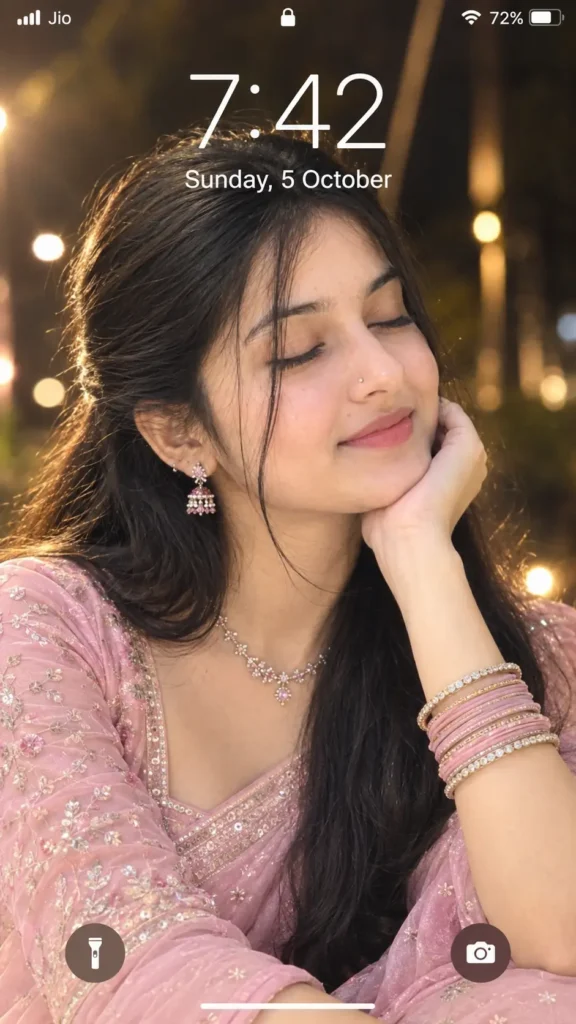
🌸 Soft Cinematic Indian Saree Portrait AI Prompt
2.Ready iPhone Lock Screen Prompt
Neeche wala prompt aap direct copy karke apni photo ke saath use kar sakte hai:
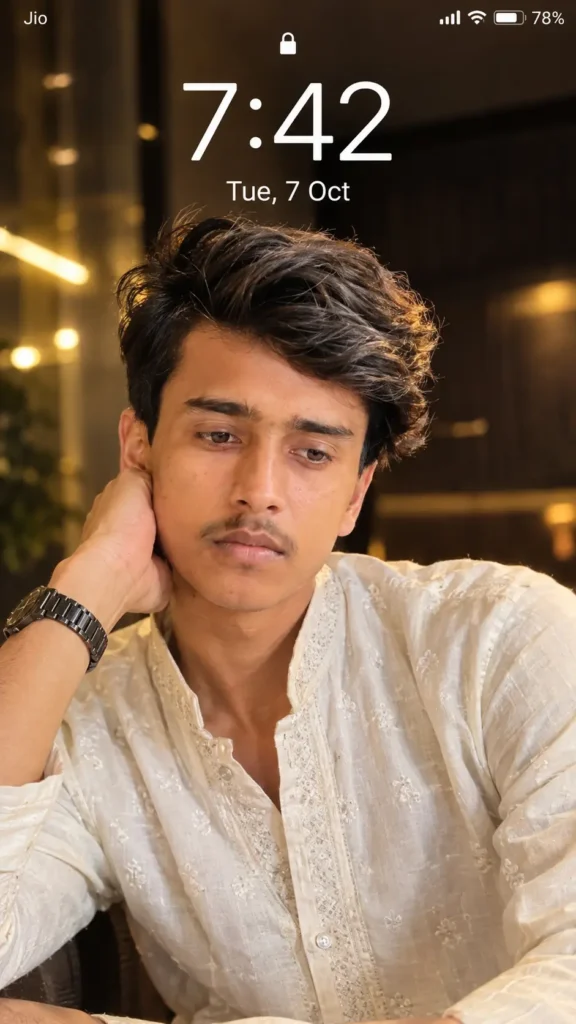
🧑🏻 Cinematic Young Man Smartphone Portrait AI Prompt
Lock Screen Text
Agar aap image mein apna time aur date bhi rakhna chahte hain, to prompt ke through ye details customize ki ja sakti hain.
Example:
11:00 AM
Sunday, October 5
Lekin AI-generated text mein kabhi-kabhi spelling ya spacing galat aa sakti hai. Isliye exact time aur date ko final editing mein add karna zyada reliable ho sakta hai.
Colors Customize Kare
Warm golden lighting ke saath dark background ek classic combination hai, lekin aap color mood ko bhi change kar sakte hain.
Cool blue lighting se modern night look mil sakta hai, jabki soft beige ya warm amber background image ko more cozy feel de sakta hai.
Aapko bas lighting aur background ki description adjust karni hogi.
Mobile Wallpaper Ke Liye
9:16 vertical format smartphone screen ke liye convenient hai.
Image generate hone ke baad preview karke dekhein ki top area mein time-date ke liye enough space hai aur face crop nahi ho raha.
Agar wallpaper set karte waqt system image ko zoom karta hai, to thoda extra breathing space rakhna useful rahega.
Final Check
Image ready hone ke baad ek baar zoom karke face aur hands inspect karein.
Uske baad outfit, hair, background aur lock-screen text dekhein. Agar koi strange object, extra facial detail ya incorrect text dikhe to image ko final use se pehle revise karna better hai.
Kya Ek Photo Kaafi Hai?
Haan, is prompt ko single uploaded photo workflow ke liye banaya gaya hai.
Aapki normal photo identity reference provide karti hai, jabki outfit, lighting, dark background aur lock-screen design prompt ke through define kiye jaate hain.
Separate wallpaper ya background image dena zaroori nahi rakha gaya hai.
FAQ
iPhone Lock Screen Photo kya hai?
iPhone Lock Screen Photo ek portrait-style wallpaper concept hai jisme personal photo ke saath lock-screen inspired time, date aur interface elements ka use kiya jata hai.
Kya face original photo jaisa rahega?
Prompt facial features aur identity ko recognizable rakhne ki direction deta hai, lekin exact same facial output ki guarantee nahi hoti.
Kya background change ho sakta hai?
Haan, dark room ki jagah city lights, rooftop, bedroom ya cafe jaisa background try kiya ja sakta hai.
AI Lock Screen photo ko realistic kaise rakhein?
Natural skin texture, controlled lighting, accurate facial details, simple background aur realistic photography instructions use karna useful hota hai.
Final Words
Apni photo ko lock-screen style wallpaper mein convert karna AI Photo Editing ka ek simple aur creative use hai. Ek normal portrait ko dark background, warm lighting, stylish outfit aur smartphone-style interface ke saath kaafi different look diya ja sakta hai.
Is iPhone Lock Screen concept mein main focus face ko natural rakhne aur image ko clean wallpaper composition mein set karne par hai. Aap basic prompt se start karke baad mein outfit, background, lighting, time aur date ko apni choice ke according customize kar sakte hain.
Best result ke liye clear source photo use karein aur final image ko wallpaper ke roop mein set karne se pehle crop, face placement aur lock-screen text ko ek baar zaroor check kare.